Abra for Shopify POS
Last updated: September 9, 2026
What is Abra for Shopify POS?
Abra for Shopify POS brings your Abra promotions into your physical retail stores through a POS extension.
POS extensions are only available on Shopify’s POS Pro plan.
Create a promotion through the Abra admin, then run it in store one of two ways. Your team activates it from the Abra tile on Shopify POS, or a public promotion published to the Point of Sale channel applies on its own whenever a cart qualifies.
Eligible discounts apply automatically as products are scanned.
Add Abra to Shopify POS
The Abra tile lives on your Shopify POS smart grid, the home screen your team sees when they open the app. Shopify's help documentation for editing the Smart Grid can walk you through accessing the POS editor, adding tiles to your smart grid, customizing your smart grid and more.
Once installed, tap the Abra tile to view the promotions available at that location. You only need to add the Abra tile once per POS setup.
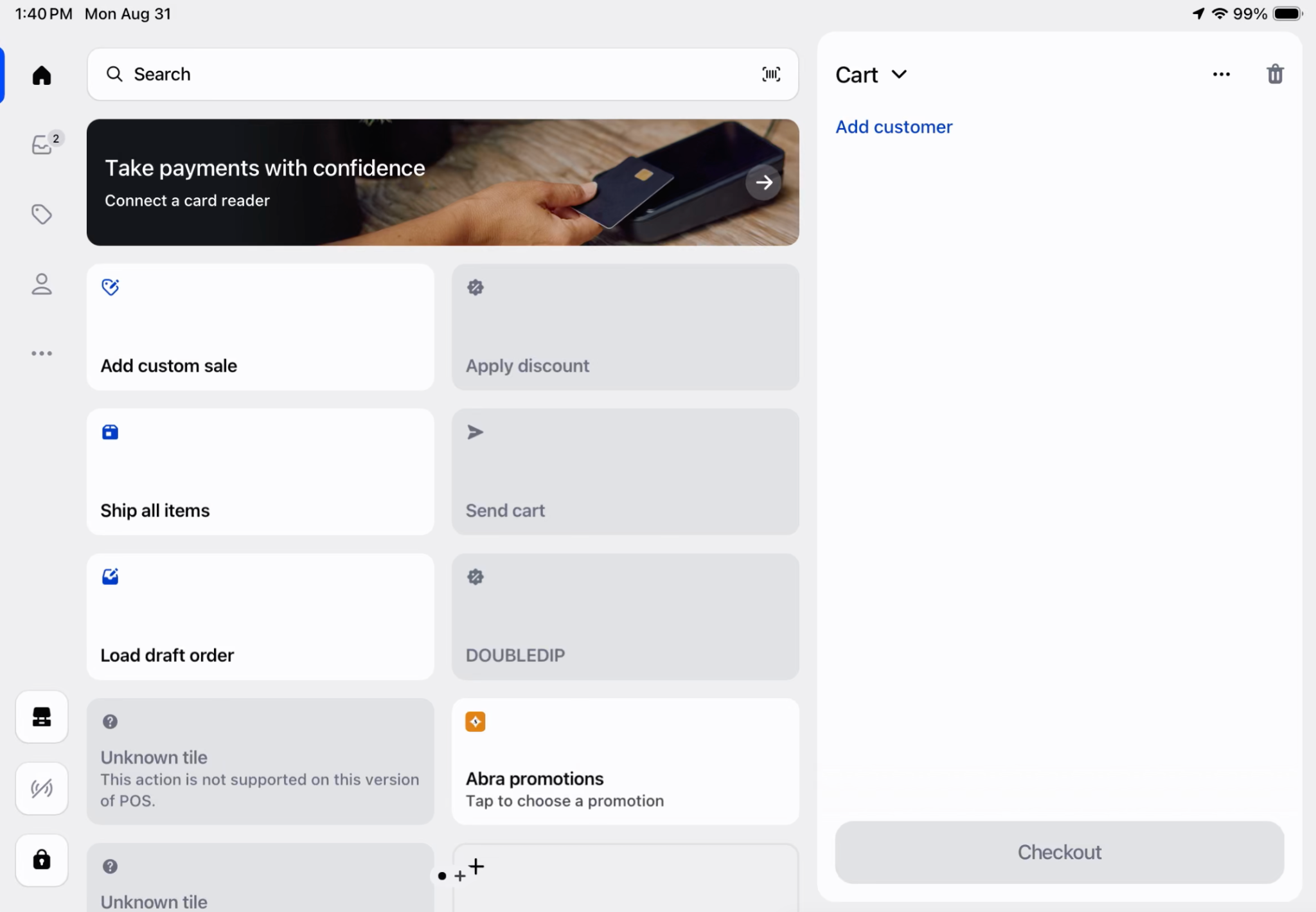
Activate a promotion on POS
Once you've created your promotion in Abra:
Open Shopify POS
Tap the Abra tile
Find the promotion you want to run
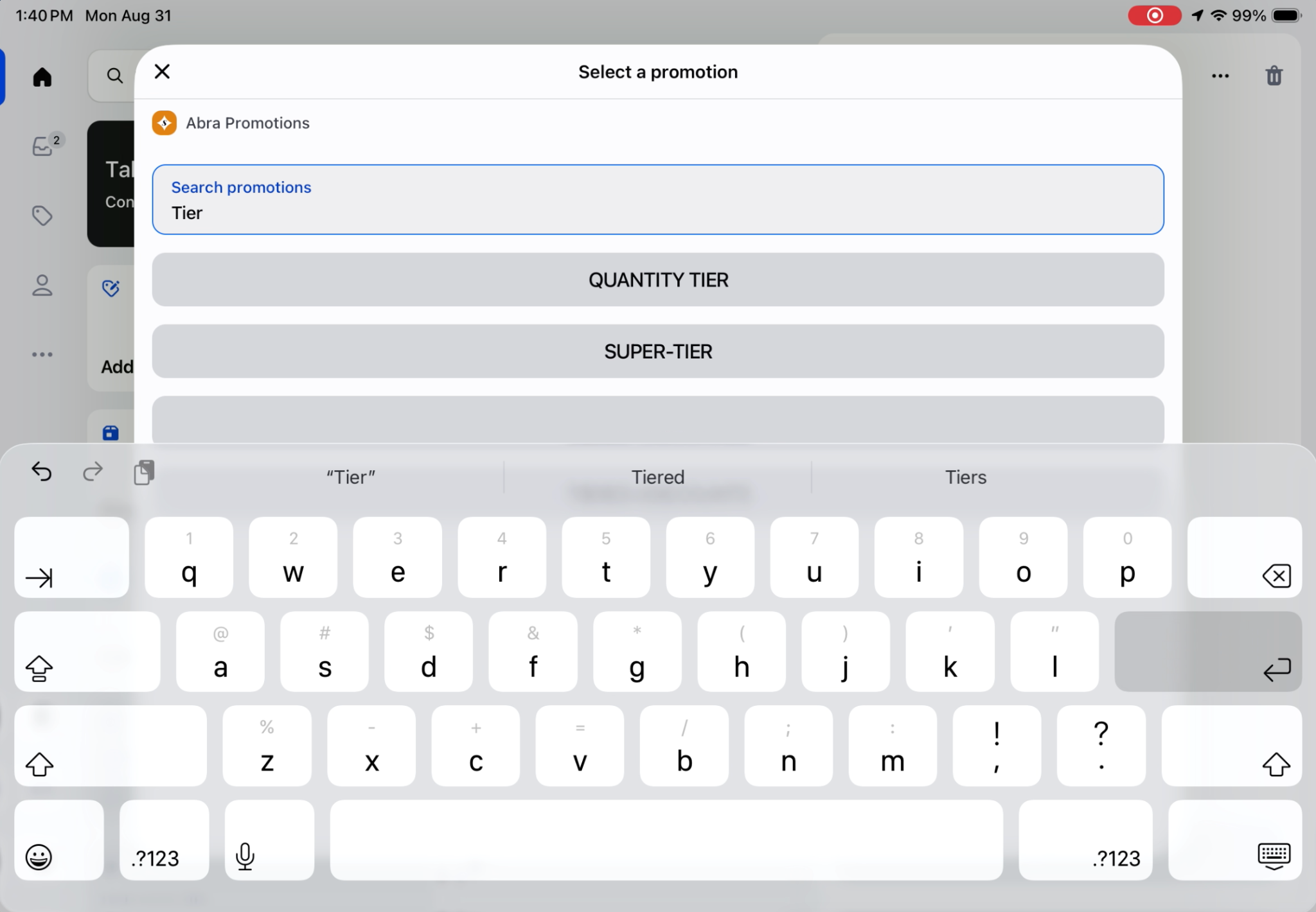
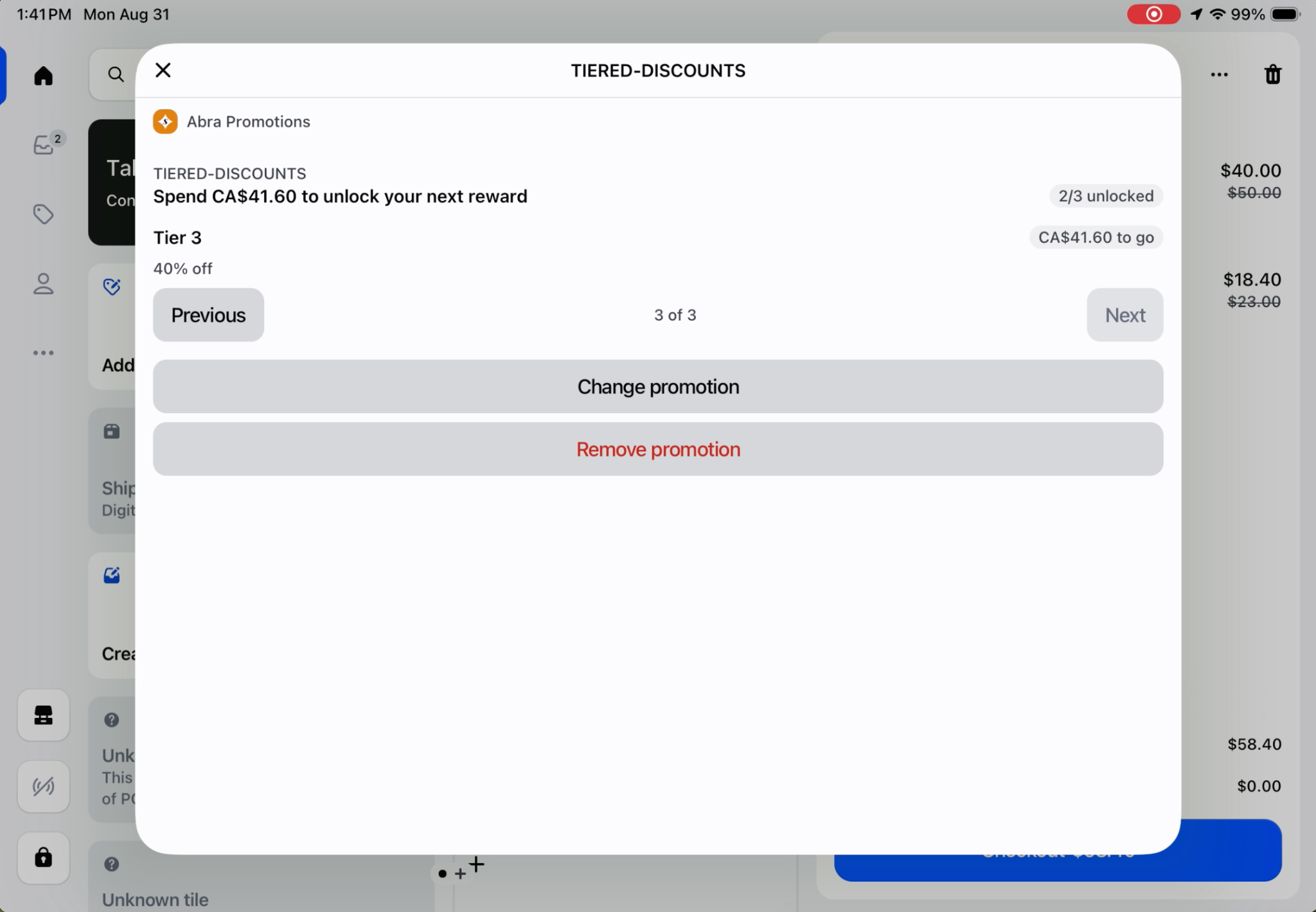
Select the promotion to activate it. If it is a tiered discount or has multiple thresholds, you can toggle left and right to see the different offers on each tier.
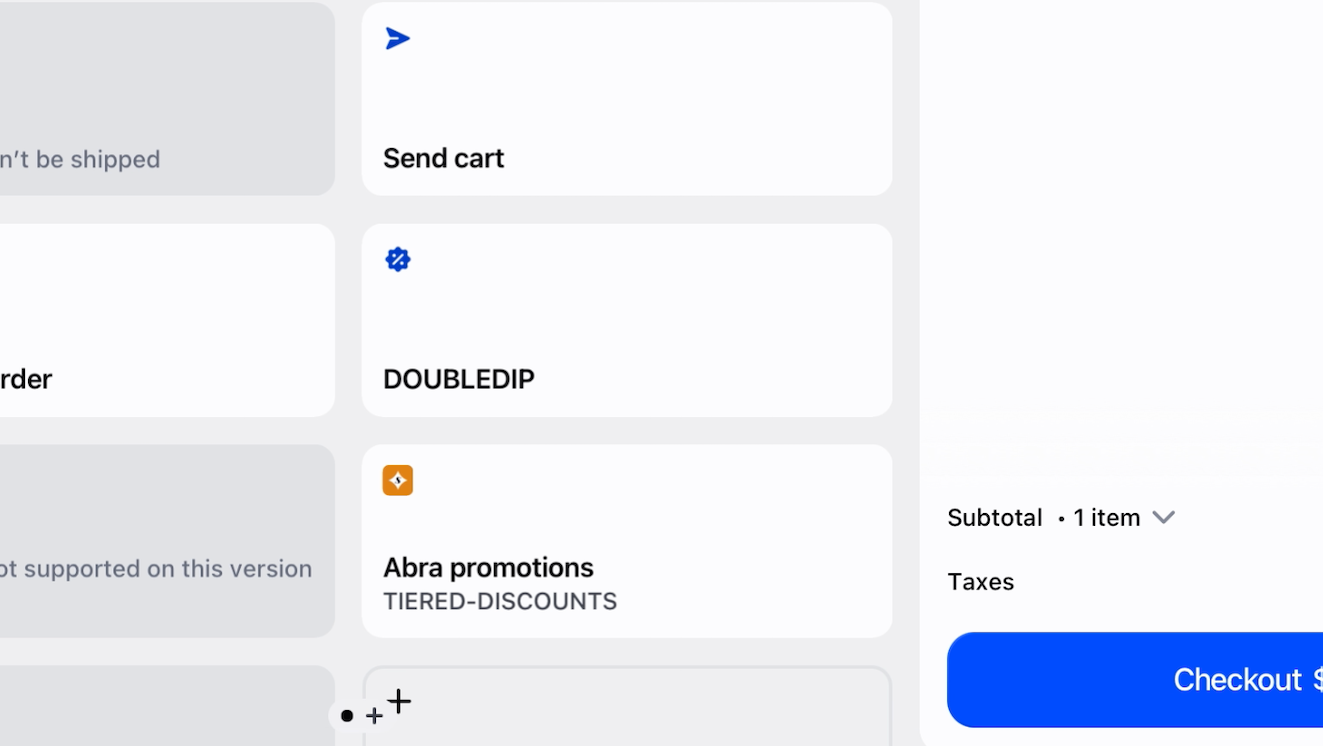
Return to the smart grid. The Abra tile will display whichever promotion is currently active.
To confirm everything is working, create a test cart and scan products that qualify. Eligible discounts apply as the cart qualifies.
Change or deactivate a promotion
To change the promotion currently running on POS, open the Abra tile and select a different promotion. You can also deactivate the current promotion in two ways:
From the tile when you no longer want it running in store. Tap it and select "remove promotion".
Directly from the Abra admin. End or deactivate your promotion.
Run different offers by market
A single promotion can carry a different offer for every Shopify market you sell in.
Create or open your promotion in the Abra admin
Add a discount for each market, then assign the applicable market from the Markets section of the discount
Save your promotion
Activate the promotion from the Abra tile on Shopify POS
Abra uses the market associated with the POS location to determine which offer applies, so your store team doesn't select a market or an offer at the register.
See Running Global Promotions for the full market setup, including configuring markets in Shopify first.
Activate POS promotions from Head Office
A public promotion can be published to Point of Sale so it applies at the register without anyone activating it from the tile. This makes it easy for the Marketing team to control promotions without needing to go to every location.
Create or open your promotion in the Abra admin
Go to Visibility
Under Public, choose where the promotion should be available:
Online Store
Tapcart
Point of Sale
Save your promotion.
Eligible discounts then apply automatically to any qualifying cart at the register. Only one public promotion can be active at a time, in store and online.
Create a POS-exclusive promotion
POS exclusivity is managed on the discount, not through the promotion's visibility settings. Limiting a discount to the Point of Sale sales channel keeps that offer out of your online store and app.
Create or open your promotion in the Abra admin
Open the discount you want to restrict to your retail locations
Set the discount's sales channel to Point of Sale only
Save the discount, then save your promotion